-
Shop
- Advanced Technologies
- AI Skills
- AI Skills for Creators & Freelancers
- AI Client Management
- AI Ethics
- AI Mindset
- AI Tools & Prompts
- AI Writing & Content Creation
- Audio, Voice & Music
- Design & Visual Creation
- Email, Messaging & Communication
- Freelancing & Business
- Marketing, Ads & Conversion
- Productivity, Workflow & Automation
- SEO & Search Optimization
- Social Media Content & Growth
- Strategy, Planning & Analytics
- Video Creation & Editing
- Apple Accessories
- Bathroom
- Beauty
- Best-Sellers
- Car Accessories
- Car Buying & Ownership
- Confidence
- Dating & Social Skills
- Digital Resources
- Education & Learning
- Family & Parenting
- Fashion
- Alexander McQueen
- Bags
- Balenciaga
- Blazers
- Bottega Veneta
- Brunello Cucinelli
- Burberry
- Chanel
- Chloé
- Dior
- Dolce & Gabbana
- Dresses
- Etro
- Fendi
- Gucci
- Jacquemus
- Jil Sander
- Kiton
- Luggage
- Miu Miu
- Off-White
- Outerwear
- Prada
- Rick Owens
- Saint Laurent
- Shoes
- The Row
- Tom Ford
- Valentino
- Valentino Garavani
- Versace
- Vivienne Westwood
- Fashion Accessories
- Furniture
- Gadgets
- Health & Beauty
- Health & Wellness
- Home Decor
- Home Electronics
- Home Styling & Organization
- Home Supplies
- Kids & Babies
- Kitchen
- Legend Footwear Brands Collection
- Lighting
- Luxury Brands Collection
- Online Business for Beginners
- Parenting & Child Development
- Patio, Lawn & Garden
- Personal Growth
- Personal Style & Fashion
- Pet Care
- Pet Lifestyle & Wellness
- Pet Supplies
- Pets
- Smart Amazon Shopping
- Smart Home Living Guides
- Super Deals
- Travel
- Travel & Adventure
- Wealth
- Wellness
- Popular
- Best deals
Activate a Samsung S Pen: Pairing & Fixes
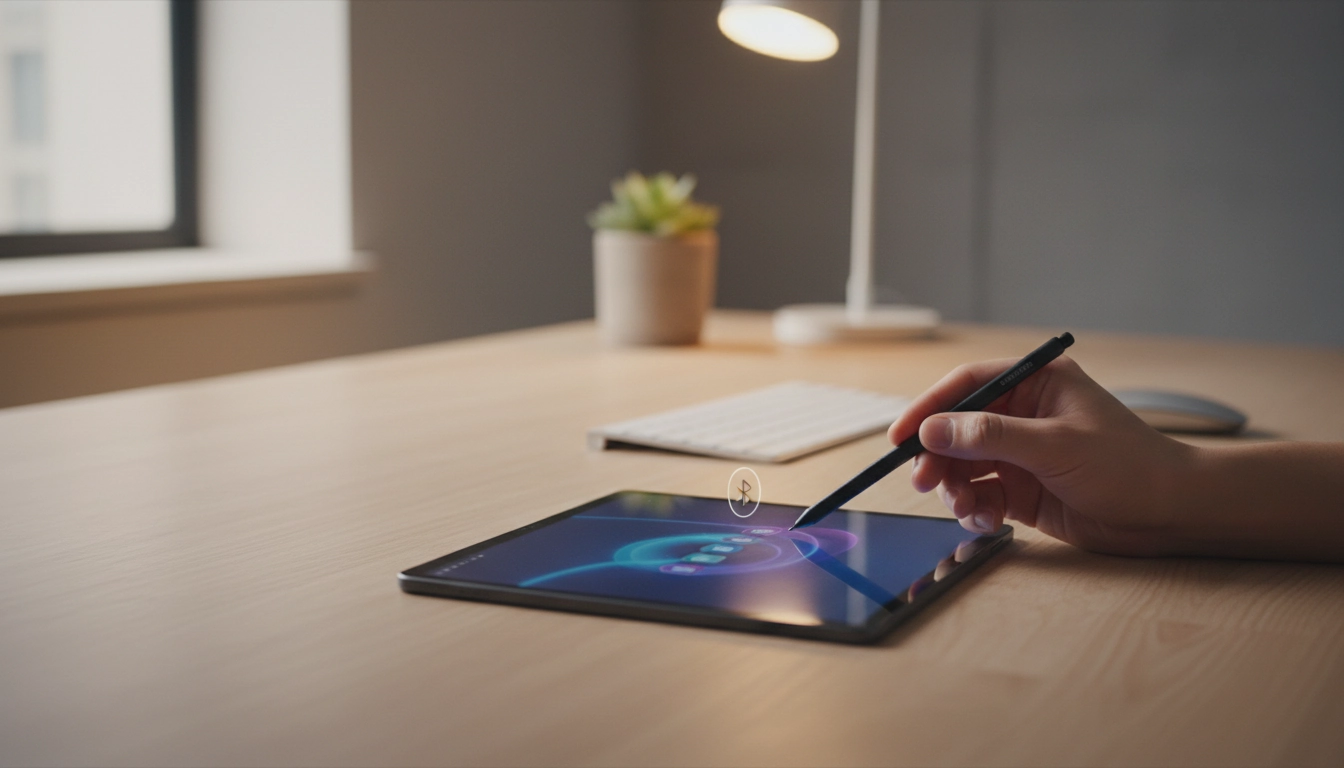
How do I activate my Samsung stylus pen?
Most Samsung stylus pens (like the S Pen) don’t have a traditional “power on” switch. Activation usually means pairing it with your phone or tablet so features like Air actions, remote shutter, and hover shortcuts work. The exact steps depend on whether you have a Bluetooth-enabled S Pen (common on Galaxy Note/Ultra and many Galaxy Tab models) or a basic stylus that only writes.
How to activate (pair) a Bluetooth S Pen
Start by attaching the S Pen to its charging spot (inside the phone silo, or the magnetic area on the back/side of many tablets). This charges it and often triggers auto-connection.
Then, on your device, go to Settings > Advanced features > S Pen (or Air actions). Turn on S Pen features if they’re off. If it isn’t connected, tap Air actions and choose Connect S Pen (or Pair) and wait for confirmation.
If your S Pen won’t connect
First, make sure you’re using the correct pen for your device—some S Pens are model-specific. Re-seat the pen on the charging area for at least a minute, then try pairing again. If it’s still not connecting, use the S Pen settings menu to Reset S Pen or Unpair and then reconnect. Restarting the phone/tablet can also restore the connection.
What if it’s a non-Bluetooth Samsung stylus?
If your stylus doesn’t support Bluetooth, there’s nothing to pair. As long as your device supports S Pen input, writing and tapping typically work immediately. Advanced remote features won’t be available on non-Bluetooth models.
For model-specific steps and troubleshooting, see the full guide here: https://journalle.com/how-do-i-activate-my-samsung-stylus-pen/.
FAQ
Why is my S Pen not connecting even though it writes?
Writing can work without Bluetooth, but Air actions and remote features require pairing. Check S Pen/Air actions settings, charge the pen on its attachment point, then reconnect or reset the S Pen in Settings.













Leave a comment